How to Create and Use a Datastore (pt. 1)
Overview
Datastores are one of the most powerful tools available to developers in Marketpath CMS to store, retrieve, and link data.
A Datastore is like a typical database table - it has a data definition - which defines the fields, requirements, and validation - and has individual records called Datastore Items.
Datastores can be configured to store large varieties of data that can be intuitively linked to other entities within a Marketpath CMS site. Here are some examples of how they have been used:
- Product Listing
- Staff Profiles
- Job Listing
- Testimonials
- Multilingual Page Translations
- Map Locations & Coordinates
Important Considerations
Some important things to consider when creating a datastore are highlighted below:
- Naming - Make sure the datastore is named something specific that clearly defines what data is present within the datastore. This will help prevent duplicate datastores from being created and will help people find the content to update as the site progresses.
- Fields - Make sure not to add more fields to the datastore than are going to realistically be used. The more fields you add, the harder it becomes to add/edit datastore items because of data overload. Consider using fieldsets, a repeatable and sortable content type, to add similar data with two or more entries.
- Data Quantity - There’s no point spending a large amount of time crafting a datastore when there are only one or two items that live in it. Sometimes, your effort may be better spent creating individual articles or blog posts to contain the data.
- Usage - Will each item have its own URL and be displayed there? Will the items be looped through and displayed on another page? Be sure to consider all the ways that the data may be displayed when setting up your datastore so that you can add fields that align with your goals.
Creating the Datastore
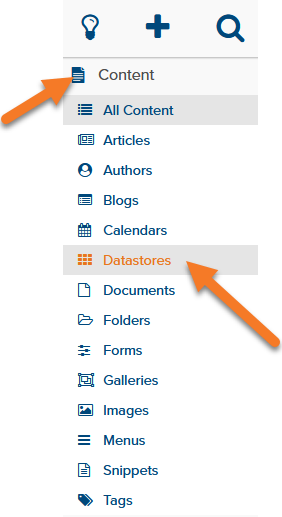
To create a new datastore, the first step is to expand the Content container and select Datastores.
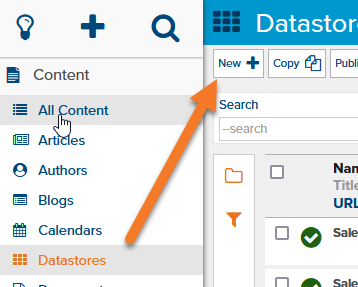
Next, create a new Datastore by clicking the New button:
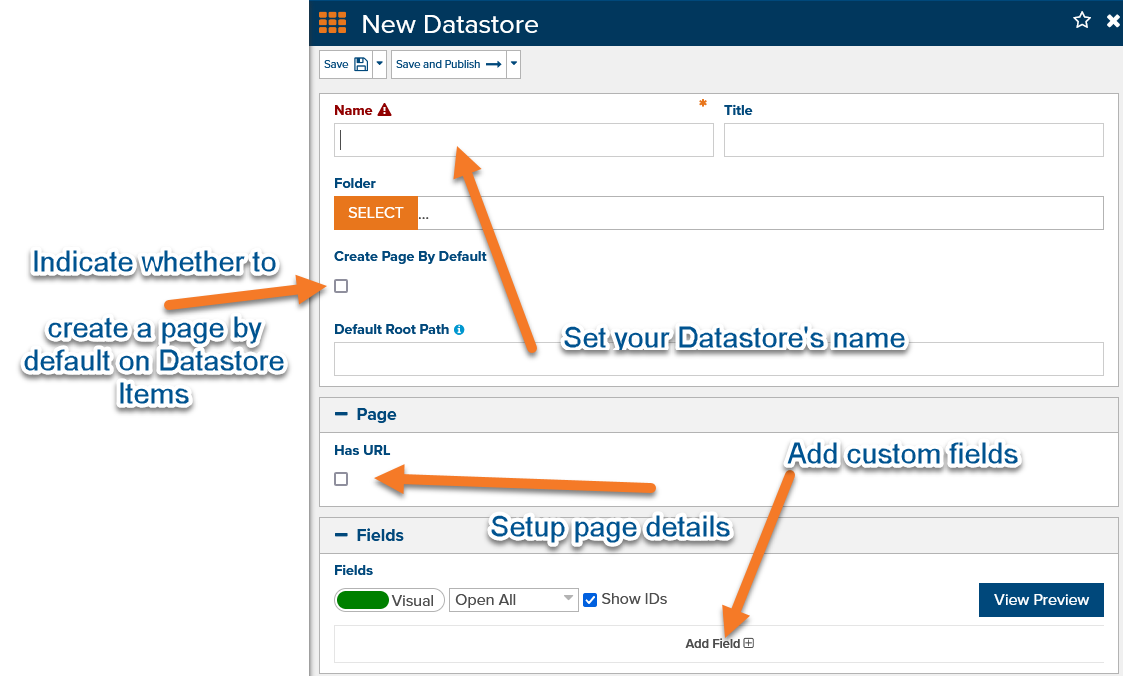
You'll see the following screen with key fields to enter, such as the Name/Title, Page fields, and Custom fields, which will be discussed in greater detail below.
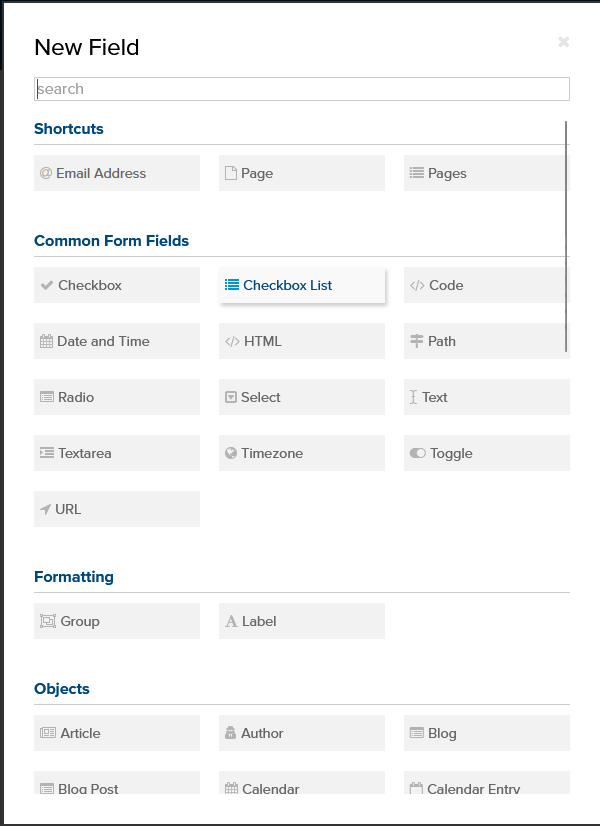
Adding Custom Fields
You have the option to add numerous kinds of data to a Datastore. We won't go into detail on all the types, but this includes fields such as plain text, HTML content areas, images, document lists, etc. This also includes form-type fields such as checkboxes and toggles.
Adding Pages
There are two types of pages that are associated with Datastores: the page for the datastore itself and selecting the page template default for the individual datastore items. The page for the datastore works as all other pages in CMS do. You check the "Has URL" box and then specify your template, URL, and any other fields that you need.
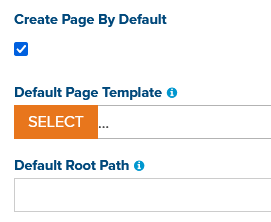
For the Datastore item, you can specify that a page is created by default as well as the template and root path that go along with them. NOTE: These defaults will be used on any datastore items that are created, but will not override any existing Datastore items.
Adding Datastore Items
The main purpose behind the Datastore is storing data as one or more datastore items. To create a new Datastore item or modify an existing one, you will go to the Datastores container under Content. Hit the arrow next to Datastore you're wanting to modify. That will show you the list of Datastore items that are present.
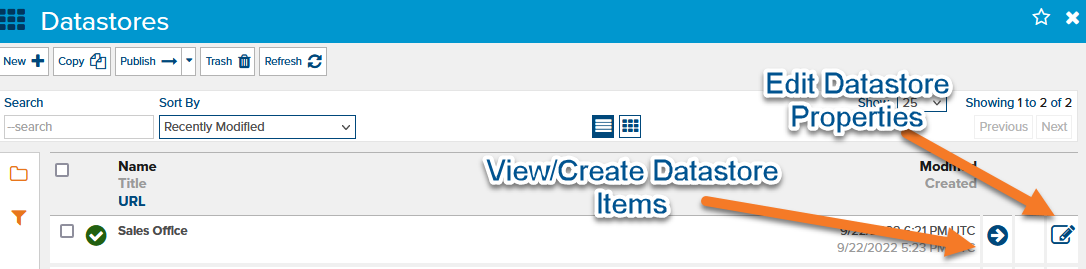
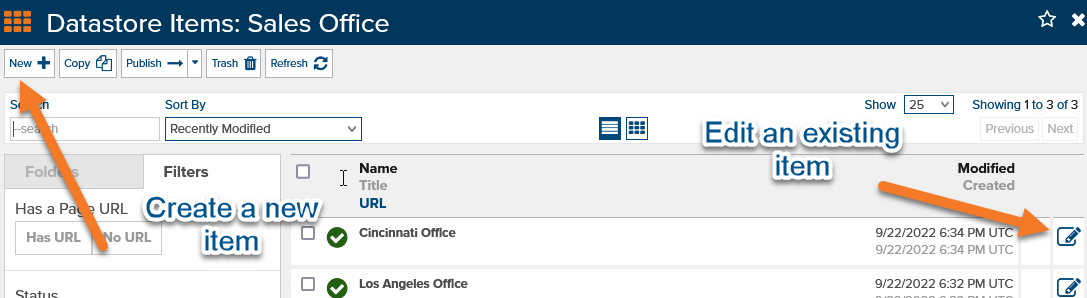
To modify an existing item, click one of the edit options. To create a new Datastore item, click the New button.
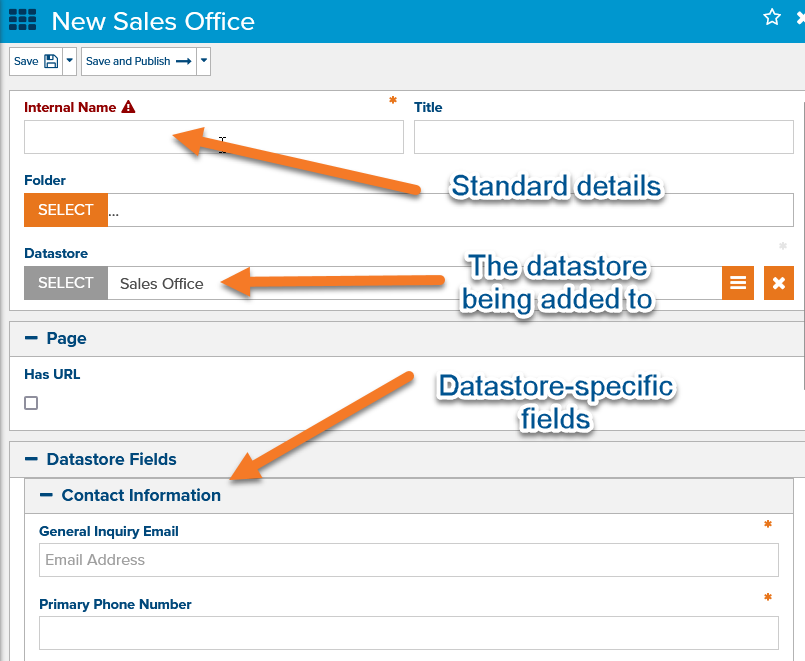
All of the settings you configured for the Datastore will be editable from the New/Edit prompt for the datastore item.
Part Two
There is a part two to this article that contains an example of how a Datastore can be used in a real-life scenario. You can read more about this here.